

Overview
To help keep your Jobber account safe, two-step verification is required for all account owners using Jobber Payments. It adds an extra layer of protection by sending a unique verification code to your mobile phone when sensitive actions are taken.
Important
For security purposes, your verification code should never be shared with anyone else. Jobber will never ask you to share your verification code with our team.
Two-step verification helps prevent unauthorized access to your Jobber account — even if someone knows your password. When you log in from an unrecognized device or try to make important changes to your Jobber Payments settings you’ll be prompted to enter a code sent via text message to your verified mobile number.
Note: You won’t need to enter a code every time you log in. You will only be prompted when making sensitive updates, or when using a new, unrecognized device.
Two-step verification can only be set up by account owners.
I can’t receive my code
If you’re not receiving your verification code, start with these troubleshooting steps:
- Text “START” to 78156. If you previously unsubscribed from messages from that provider, even for a different service, your number may be blocked from receiving texts.
- Check that your device isn’t set to filter unknown senders.
- Confirm your device is connected to data or able to receive text messages.
- VOIP numbers aren’t supported for two-step verification.
- Turn off airplane mode or do not disturb mode.
- Turn on Wi-Fi calling.
- Confirm you’re checking the correct phone number. The code only goes to the number set up for two-step verification.
If you no longer have access to the phone number on file, for the quickest resolution, email safety@getjobber.com so our team can help get you back on track. For your account’s security, we can only make this change at the request of the account owner. When you contact us, we’ll verify your identity before processing your request. Have the following ready:
- The Jobber account name associated with your email.
- The new phone number you’d like to use.
- Any additional details about the error. We encourage screenshots.
Updates to two-step verification phone numbers can take up to 3 business days to complete. If you have additional trouble or questions, our support team is here to help.
Set up two-step verification
If you’re the account owner and you try to access a feature in Jobber that’s protected by two-step verification, you’ll be prompted to set it up (if you haven’t already).
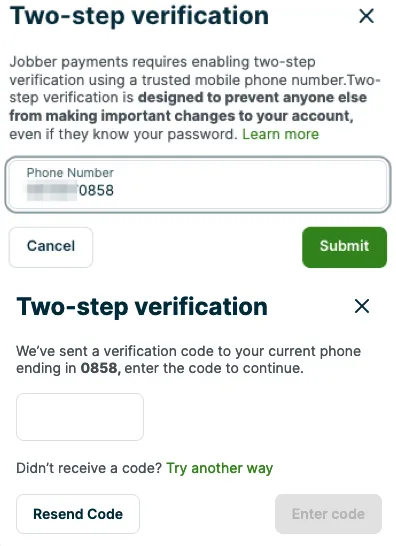
To complete the two-step verification set up, follow these steps:
- Enter your mobile phone number. This must be a number that can receive text (SMS) messages.
- Click Submit. Jobber will check if your phone number is valid for receiving texts.
- Check your phone for a six-digit verification code.
- Enter the code into Jobber. Type each digit of the code, then click Enter Code. Once the code is accepted, the action you were trying to complete will be unlocked. If you don’t receive the code, click Try another way.
Note: Some browsers or devices such as Safari when you’re using Messages will automatically fill in the code for you.
Change the phone number used for two-step verification
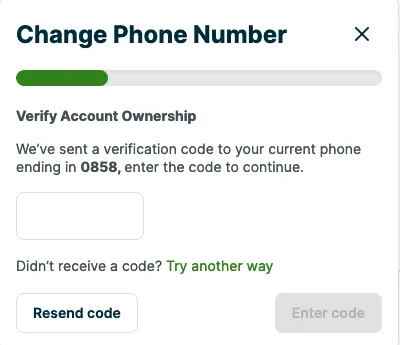
To change the phone number associated with two-step verification:
- Click the Gear Icon and go to Manage Team.
- Select the Account Owner.
- In the account owner’s personal information section, click Change next to the phone number.
- Enter the verification code sent to the current phone number.
- Once the code is accepted, the phone number will unlock so you can enter a new one.
- Going forward, two-step verification codes will be sent to this new phone number. The last four digits will appear in the account owner’s personal information.
Note: You must be the account owner to change the phone number associated with two-step verification).
We’ll notify you in case of an unusual login
If we detect an unusual login to your Jobber account, we’ll ask you to complete a two-step verification process the next time you sign in. An unusual login might occur when someone accesses your account from a new device or location.
Sometimes everyday actions can look out of the ordinary to our system — for example, signing in while on a trip, using a VPN, setting up a new device, or sharing your login with someone else. In these cases, you may receive a text with a verification code as a precaution to help keep your account secure.
Note: To keep your account secure, we don’t suggest that users share Jobber accounts or details like their password.